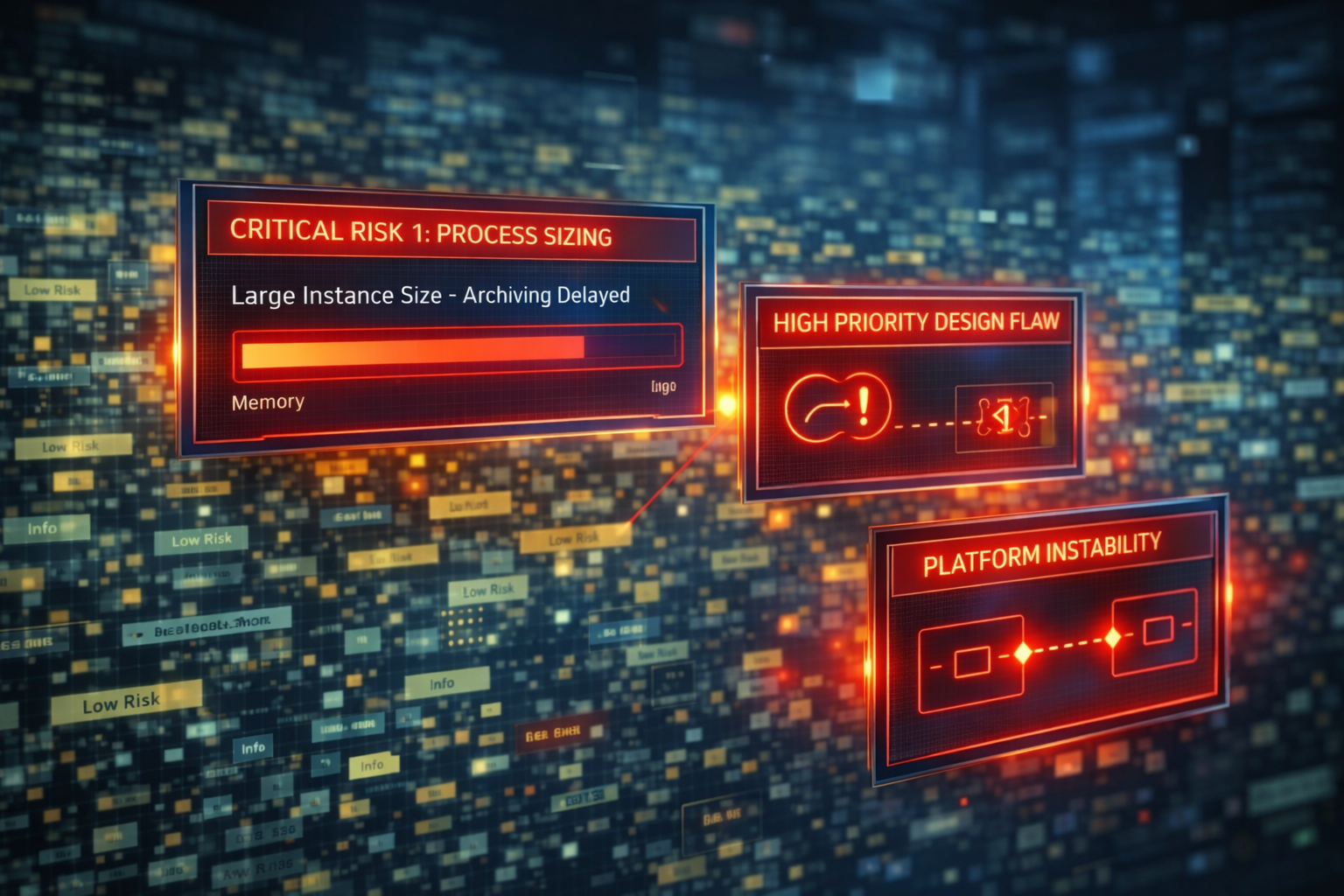
When the automated Appian Health Check runs, it often hands the development team an Excel file with hundreds of rows of warnings.
Without a strategy, this spreadsheet causes panic. Developers start blindly fixing minor warnings at the top of the list, while a massive memory leak sits ignored on row 352. The Health Check evaluates four distinct areas—Design, User Experience, Infrastructure, and Configuration—but it is not a sequential to-do list. It is raw data.
To effectively reduce technical debt, you need to treat the report like an emergency room triage. Here is the Codzelerate framework for scheduling, securing, and executing Appian Health Checks.
The Preventive Strike: Real-Time Design Guidance
The easiest way to survive a Health Check is to prevent the errors from ever being logged in the first place. A clean audit starts in the Appian Designer, long before the monthly ZIP file is generated.
Appian provides real-time Design Guidance directly in the object editors and on the Health Dashboard (under the Monitor view). This guidance is split into two strict categories:
- Warnings (Yellow Triangle): These are critical design flaws (e.g., syntax errors, invalid keyword parameters, broken rule inputs). They will cause errors or unexpected behavior at runtime. They cannot be dismissed and must be fixed immediately by the developer.
- Recommendations (Grey Lightbulb): These detect patterns that go against performance best practices (e.g., passing a CDT by reference in a subprocess, or misconfigured error alerts). Recommendations can be actively dismissed if your specific architectural use case justifies the deviation.
If your team makes it a strict definition of done to clear all Warnings and thoughtfully address all Recommendations before hitting “Save,” you will effectively eliminate the vast majority of the “Low” and “Medium” risk findings before the Health Check is ever generated.
The Architect’s Schedule: When and Where to Run It
A common mistake is treating the Health Check as a once-a-year audit. Platform health is dynamic, and your strategy should adapt to the environment.
- Lower Environments (Dev/Test): The “Shift-Left” Check
- Frequency: On-demand (specifically before every major release or at the end of a sprint).
- The Goal: Catch broader design flaws—like missing viewer groups on data stores or deprecated functions—before they reach production.
- Production Environment: The “Runtime” Check
- Frequency: Monthly. (Appian retains Health Check findings for up to one year, allowing you to track historical trends).
- The Goal: Catch data-driven degradation. Code that worked perfectly in Dev might fail in Prod when exposed to massive data volumes. Look for memory spikes, unarchived processes, and CPU/Disk utilization limits.
The Security Gate: Data Review and Privacy
Before diving into the findings, Architects must manage the data itself. Health Checks compile system logs (Audit, Performance, Troubleshooting) and design object properties into a single ZIP file.
- The Review Step: System administrators have the opportunity to download and inspect this ZIP file before it is sent to Appian Community for analysis.
- The Strategy: Use this step to ensure no sensitive logs or user-entered data are transmitted. Once your environment’s baseline is validated and normalized, you can enable the Auto-Approve setting to skip the manual review and streamline future monthly runs.
Step 1: Decode the Report Structure
Do not read the Details sheet from top to bottom. Triage the four sheets of the report in this specific order:
1. Process Sizing (The Memory Killers)
Start here. This sheet exposes the process models consuming excessive memory on the Appian execution engines. Look for cells highlighted in red:
- Long Cleanup Delay: Processes taking too long to archive or delete. Set a shorter automatic clean-up window.
- Low Completion %: Processes stuck in memory due to errors, or designs that leave orphaned nodes active.
- Large Instance Size: Often caused by bloated process variables. Memory must be allocated for the lifespan of a process. (Generating 100 process variables is a medium risk; exceeding 300 is a high risk).
2. Details: High-Risk Design Patterns
Next, filter the Details sheet for critical architectural flaws that threaten platform stability. Immediate targets include:
- CDTs Passed by Reference: Always pass CDTs by value. If a CDT passed by reference receives a published update, all active instances of the parent process model will pause by exception when trying to reach a subprocess.
- MNI Batch Limits: Exceeding the 1,000 instance limit in Multiple Node Instances (MNI) within a process flow.
- Interface Context Size: Interfaces caching too much data between reevaluations. Minimize data held in
load()variables by delegating aggregation and filtering to the database.
Jargon Lookup: The “N+1 Query” Problem A massive performance killer in low-code. It happens when an application makes 1 query to retrieve a list of ‘N’ items (e.g., 100 Employees), and then executes ‘N’ additional queries inside a loop (like an
a!forEach) to get a specific detail for each item. Retrieving those 100 items just cost you 101 database calls instead of 1 well-written SQL Join or Appian Record relationship.
3. Details: Peak Average Performance
When evaluating slow record interfaces or Web APIs, the Health Check uses an Exponential Weighted Moving Average (EWMA) to calculate “Peak Average.” This ensures that high-usage periods and recent data are weighted more heavily than weekend lulls. Focus your UI optimization efforts on rules that flag high Peak Averages, as this reflects the reality of what users experience during business hours.
Jargon Lookup: Exponential Weighted Moving Average (EWMA) How does Appian calculate “Peak Average”? If an interface is sluggish for 500 users at 9:00 AM, a simple average would hide that slowness by blending it with lightning-fast response times at 2:00 AM when nobody is online.
EWMA solves this by giving more “weight” to recent and peak data points, while older or off-peak data exponentially fades away.
Think of it like a pizza shop wait time: If you are slammed at 7:00 PM (60 min wait) and 7:15 PM (65 min wait), but were empty at 8:00 AM (10 min wait), a simple average says the wait is 45 minutes. An EWMA calculation gives the recent rush more weight, putting the current wait accurately at 63 minutes.
Step 2: The Execution Strategy
How do you actually get the work done when the business is demanding new features?
- The “Boy Scout” Rule: Leave the code better than you found it. Do not create separate Jira tickets for Low/Medium issues (like unused local variables). Fix them organically when a developer is already opening that specific rule to build a new feature.
- Dedicated Tech Debt Capacity: Allocate 15-20% of your Agile sprint capacity strictly for tackling the High-Risk structural issues identified in the Process Sizing sheet. Do not negotiate this time away.
- Accept False Positives: The Health Check is an automated tool; it lacks business context. If you deliberately designed an intensive, high-memory process to meet a strict compliance requirement—document the architectural justification and move on. Don’t break a working system just to clear a warning.
Stop letting the spreadsheet manage you. Take control of the data, categorize the risk, and build a platform that scales.
Stay Ahead of the Curve
We are actively exploring the intersection of enterprise architecture, low-code orchestration, and emerging deep tech. Subscribe to the Codzelerate Newsletter to get our latest research and architectural deep-dives delivered straight to your inbox.
Further Reading
- The Anatomy of an Appian Error: A Forensic Debugging Guide: A clean Health Check is only half the battle. When a critical runtime issue slips through to Production, learn how to trace errors forensically across the Appian log ecosystem.
- The Hybrid Horizon: Orchestrating Quantum Computing with Low-Code: Looking beyond today’s technical debt? Explore how enterprise low-code platforms are positioned to become the orchestration layer for next-generation quantum APIs.